

Before launching a Shopify store, check that customers can find the right product, understand the full price, pay successfully, and receive an order your team can fulfil. A finished homepage is only one part of being ready to sell.
This Shopify store launch checklist takes you through 12 practical checks, from product pages and mobile shopping to shipping rules and customer emails. Use it for your first store or before relaunching an existing one.
You will learn what to test, how to recognise a working setup, and which problems should delay your launch. Smaller improvements can follow once the essential buying journey works.
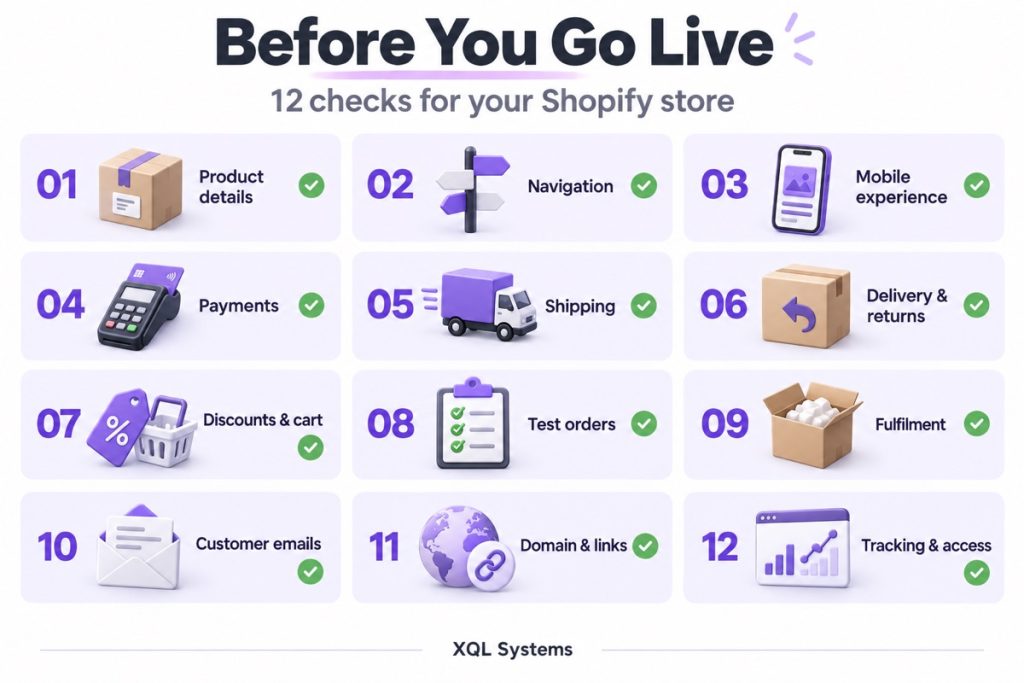
Shopify launch checklist at a glance
| Check | Evidence to record |
|---|---|
| Product details | Correct variant, price, images, and available stock |
| Navigation | Main products reachable from menus, collections, and search |
| Mobile experience | Buying journey completed on a phone |
| Payments | Supported payment tests complete; live setup ready |
| Shipping | Expected options and charges for representative addresses |
| Delivery and returns | Published information matches your operation |
| Discounts and cart | Correct totals for eligible and ineligible carts |
| Test orders | Successful and failed-payment scenarios checked |
| Fulfilment | Team or system receives the correct order details |
| Customer emails | Notifications received and reviewed |
| Domain and links | Public domain and important old URLs checked |
| Tracking and access | Store accessible to visitors; measurement verified |
For each check, record the result, the evidence, and the person responsible. Use a screenshot, test order number, or a short note describing the issue. This makes it easier to distinguish a completed check from an assumption.
Shopify recommends placing at least one test order during setup and after changing payment settings. Its guide explains how testing helps verify checkout, inventory, shipping, notifications, and tax calculations. Read Shopify’s test-order guide.
If you are still choosing a plan and estimating expenses, start with our Shopify pricing and running-cost guide, then return here to check your launch readiness.
Prepare products and mobile navigation
Start where your customers start: finding a product and deciding whether it is right for them. Clear product information and usable navigation help shoppers make that decision without contacting your team.
1. Check your products as a customer would
Open your main products from the storefront, rather than relying only on what appears in the admin.
Confirm that:
- Prices and sale prices are correct.
- Each size, colour, or other variant selects the right item.
- Product images match the selected variant.
- Stock availability matches what you can fulfil.
- Descriptions explain what is included and what customers need to know.
For a clothing store, check size guidance and material details. Select a blue shirt in medium and confirm that the image, availability, and item added to the cart all match. For a skincare store, check that pack size and usage instructions are clear. These are illustrative checks you can adapt to your catalogue.
Pass when: a new visitor can confidently identify what they are buying.
2. Make your main products easy to find
Start at the homepage on a phone. Try to find a specific product using your menu, collections, and search.
Ask someone who did not build the store to find a particular item without your help. Their first wrong turn can reveal an unclear menu label or a missing collection.
Look for confusing collection names, empty categories, and links that lead nowhere. Check that the logo returns visitors to the homepage and that customers can reach contact information without searching through several pages.
Pass when: the route from homepage to product feels clear without an explanation from you.
3. Test the mobile buying journey
Do more than shrink a desktop browser window. Open the store on a phone and move through a normal purchase.
Check whether visitors can read the product details, select a variant, change quantity, and reach checkout. Pay particular attention to chat widgets, cookie notices, sticky buttons, and promotional popups. A welcome offer is unhelpful if its close button is off-screen or it covers the size selector.
Repeat the journey on another device or browser if you can, particularly when your theme or apps add custom shopping features.
Pass when: nothing covers a necessary control or makes the customer repeatedly dismiss an overlay.
Verify payments, shipping and discounts
Next, check whether the price and delivery promise survive the move from product page to checkout. Test the conditions behind your offers, including minimum spend, delivery region, and product eligibility.
4. Confirm your payment setup
Review which payment methods you intend to offer and confirm that the required setup is complete.
Use the testing method supported by your payment provider. If you enable a payment test mode, remember that customers cannot place live orders through that provider while it remains in test mode. Disable it after testing and before accepting customers.
Shopify Payments test mode does not capture real payments. Turn it off before launch; do not enable it on a store already accepting live customers. Testing through a real purchase and refund may incur processor fees. Shopify’s payment testing guidance and test-order options explain the differences.
Pass when: your intended payment flow has been tested and the provider is ready for live transactions.
5. Test shipping with representative addresses
Choose sample addresses from the regions you actually serve.
Check the shipping choices and charges shown at checkout. Include an address outside your delivery area to see how the store responds.
If you offer free shipping above a minimum spend, test a cart below the threshold and another above it. Repeat the check with a discount if that could affect eligibility.
Pass when: checkout offers the delivery options you intended, at the expected price.
6. Explain delivery and returns before checkout
Customers should be able to find delivery estimates, shipping costs or calculation rules, and return information before committing to an order.
Make sure your published information matches your actual operation. Avoid promising a dispatch or delivery time your team cannot consistently support.
Check your contact page too: does its email address work, and does someone monitor it?
Pass when: a customer can understand what happens after payment and how to ask for help.
7. Check discounts and cart behaviour
Test the offers you will promote at launch. A discount should be understandable before a customer enters a code, including any exclusions or minimum spend.
Try eligible and ineligible products, different quantities, and any minimum-spend requirement. Remove an item after applying a discount and confirm that the cart updates as expected.
If you have bundles, subscriptions, or other app-powered offers, test those separately.
Pass when: the amount charged matches the promotion you advertised.
Test orders, fulfilment and customer emails
A successful payment is only part of a successful order. Your team needs the correct details, and the customer needs clear confirmation. Follow both sides of the process before inviting customers in.
8. Run a small order-testing matrix
One successful checkout does not cover every customer journey. Use a short matrix to make the test repeatable:
| Scenario | What to confirm |
|---|---|
| One in-stock product | Correct variant, quantity, and total |
| Cart with a launch discount | Discount applies only as intended |
| Address in each delivery region | Expected shipping options appear |
| Address outside your delivery area | Store handles it clearly |
| Supported failed-payment test | Customer can understand and recover from failure |
| Cancelled or refunded test order | Order and customer communication are handled correctly |
Shopify’s launch guidance recommends testing different payment, shipping, discount, device, and transaction scenarios. The matrix above is a starting point; add cases specific to your business. Shopify launch testing guidance
Example: test a free-shipping offer before promoting it
Imagine a store offering free shipping on eligible orders of $75 or more. This is an illustrative example, not a client result.
- Add $70 of eligible products and confirm the expected paid shipping option appears.
- Increase the cart to $80 and check that the intended free-shipping option becomes available.
- Apply a discount that reduces the cart below $75. Confirm the outcome matches the way you configured and advertised the offer.
- Change the delivery address to a region outside the offer. Check that free shipping is no longer offered there.
- Record the cart contents, address region, discount, and result so someone else can reproduce the test.
The goal is not to assume every store uses the same shipping rules. It is to verify that your checkout matches your promise.
9. Follow an order through fulfilment
Before testing, prevent automatic dispatch of test orders. Shopify advises disabling apps that automatically fulfil orders while running Shopify Payments tests; purchasing shipping labels can still incur charges. Coordinate a controlled check with your fulfilment provider rather than sending a test order into a live dispatch queue. Shopify Payments testing precautions
Once a controlled test order is available for review, confirm who receives it and what happens next.
Check the product details, delivery address, inventory change, and fulfilment process. If an app or external system handles orders, verify that it receives the information it needs in an appropriate test environment or agreed test workflow. For example, check that a warehouse can identify the exact variant and quantity, not just the product name. Document how you will confirm the live connection at launch.
Pass when: the person responsible for dispatch can process the order without guessing or manually chasing missing details.
10. Read the customer emails
Open the order confirmation on a phone.
Check the sender name, product details, totals, support information, and links. Review the other messages customers will encounter, such as shipping or cancellation notifications.
Pass when: the messages clearly explain the order’s status and the customer’s next step.
Check your domain, tracking and launch readiness
Finish by checking the links customers will use and the information you will rely on after launch. This matters especially when replacing an existing store: a working new homepage does not confirm that old product links still work.
11. Check your domain and important links
Open the store using the domain you will share publicly. Visit your main products, collections, contact page, and other important destinations.
If you are replacing an existing website, check old URLs as well. Map moved pages to relevant replacements and test the redirects.
Shopify includes domain setup and redirect checks in its launch guidance. Shopify’s launch checklist
Pass when: your launch links reach the intended pages and important old links have an appropriate destination.
12. Verify tracking and access
Before announcing the store, check that your measurement setup can record the activity you intend to review.
For a basic launch, that might include product views, cart activity, checkout starts, and purchases. Use the testing tools provided by your analytics setup, and check that a single purchase does not produce duplicate purchase events. Shopify’s simulated transactions do not appear in its payouts or reports, so do not use those reports alone to judge whether a test succeeded. Shopify’s test-order guidance Confirm that your setup respects the consent choices and requirements applicable to your store.
Finally, check the storefront as a visitor who is not signed into Shopify. Make sure customers can access it when you launch.
Pass when: the public store is accessible and you can distinguish a working purchase journey from one that needs attention.
Decide what must be fixed before launch
Use a simple rule: if an issue prevents an intended customer from buying, changes what they pay unexpectedly, or prevents you from fulfilling the order, fix it before launch.
Use the examples below to separate launch blockers from follow-up work.
| Finding | Suggested action |
|---|---|
| Payment fails for an intended payment method | Resolve and retest before promoting the store |
| A main delivery region has no valid shipping option | Fix the rule and test a representative address |
| The wrong variant reaches your order system | Fix the mapping and repeat the controlled order test |
| A decorative icon is slightly misaligned | Schedule a visual improvement if buying remains unaffected |
| You would like more lifestyle photography | Plan it after launch if current images describe products accurately |
Assign each unresolved item an owner and a deadline. Repeat the affected checks after making changes; a fix is complete when the relevant journey works.
What should you watch after launch?
During the first few days, review real orders alongside customer questions and your analytics. Look for patterns that point to a specific next step:
- Repeated delivery questions: check whether estimates and shipping conditions are easy to find.
- Customers reporting payment errors: investigate the affected method and device before sending more traffic to the store.
- Orders needing manual corrections: review product options, address handling, and the information passed to fulfilment.
- Unexpected totals or missing notifications: reproduce the reported journey and check the relevant settings.
Record the issue, the change you made, and the result of retesting. Small early traffic numbers can be misleading, so use customer reports and order evidence alongside conversion data.
Frequently Asked Questions About Launching a Shopify Store
How do I know if my Shopify store is ready to launch?
Your store is ready when customers can find products, select the correct options, understand delivery costs, and complete checkout—and your team can fulfil the resulting orders. Work through the checklist and resolve anything that blocks those steps before announcing your launch.
Should I place a test order before launching?
Yes. Shopify recommends placing at least one test order during setup and after changing payment settings. Check the selected products, checkout totals, shipping, inventory, and notifications. Also test a failed payment using your provider’s supported testing method. Shopify’s test-order guide
Can customers buy while Shopify Payments is in test mode?
Customers cannot place live orders through a payment provider while it is in test mode. After testing, disable test mode and confirm your payment setup is ready before sending customers to the store. Shopify payment testing guidance
What should I check on mobile before launching?
Follow the complete buying journey on a phone. Open the menu, find a product, select a variant, add it to the cart, and proceed through checkout. Check that text is readable and that popups, chat widgets, or sticky buttons do not cover important controls.
How can I test my Shopify shipping settings?
Use representative addresses from each region you serve and check the options and charges shown at checkout. If you offer a free-shipping threshold, test carts below and above it. Also try an address outside your delivery area to confirm that the store handles it clearly.
Do I need a paid theme or custom development to launch?
Not necessarily. First check whether your current theme supports your products, navigation, and buying journey. Paid themes or custom development are worth evaluating when a specific requirement remains unmet. If you need to scope that work, our Shopify website development cost guide explains the kinds of requirements that affect a project budget.
What if I find a problem just before launch?
Delay launch if the problem prevents purchases, produces unexpected charges, or stops your team from fulfilling orders correctly. Smaller presentation issues can go onto a follow-up list with a clear owner and deadline.
What should I monitor after my Shopify store goes live?
Review order processing, customer questions, checkout difficulties, shipping charges, inventory changes, and notifications. Check that tracking records the activity you intend to measure. Use those observations to prioritise improvements after launch.
How long does it take to prepare a Shopify store for launch?
There is no single timeline for every store. Product readiness, theme changes, delivery regions, payment setup, and integrations all affect the work involved. Set your launch date around completed checks and resolved blockers, rather than assuming that a finished homepage means the store is ready.
Need help getting your store ready to launch?
You may be able to complete these checks yourself when your store uses a straightforward theme and setup. Specialist help becomes useful when a problem involves custom theme code, conflicting apps, a migration, or an order-system integration.
If you need help resolving those gaps, explore XQL Systems’ Shopify store setup services.
Share your store URL, product count, delivery regions, intended launch date, and the checks you could not complete. Those details give the team a clearer starting point for discussing the work you need.